Top 6 24-Hour Towing Services in San Diego
November 20, 2025
Deep Dive Into the Ultimate Mobile Tire Service
November 23, 2025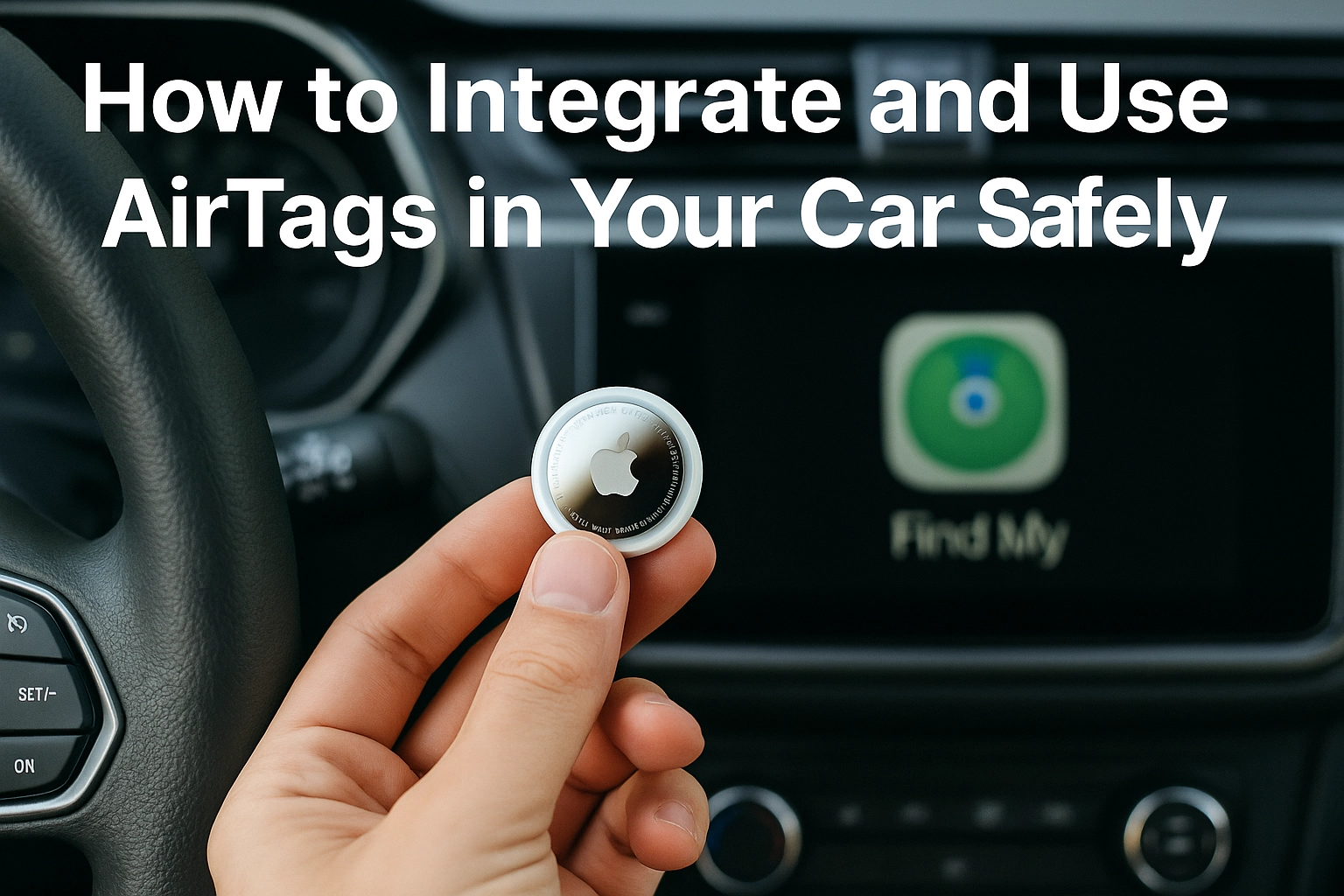
You park on a busy street and walk away, confident you will find your car later. With Apple’s AirTag, that peace of mind can be real, if you set it up the right way. Many drivers search for airtag in car tips, but beginners often struggle with placement, privacy, and realistic expectations. This guide explains how to integrate an AirTag into your vehicle safely and responsibly.
You will learn how to set up your AirTag in the Find My app, choose smart placement that helps recovery without interfering with driving, and understand what AirTag can and cannot do. We will cover privacy and legal considerations, including alerts that protect against unwanted tracking. You will see how to optimize notifications, share access with family, maintain the battery, and pick accessories that keep the tag secure. Finally, we will outline common mistakes to avoid and simple troubleshooting steps, so you can use an AirTag in your car with confidence and clarity.
Understanding AirTags and Their Role in Vehicle Tracking
What is an AirTag
Apple’s AirTag is a coin-sized tracker designed to help you find personal items, including a vehicle. It uses Bluetooth Low Energy to announce its presence to nearby Apple devices and Ultra Wideband on iPhone 11 or later to guide you directly to it with Precision Finding. AirTags are IP67 rated for dust and water resistance and run on a replaceable CR2032 battery that typically lasts about a year. They tie into Apple’s vast Find My network, which crowdsources location updates from nearly a billion devices for wide-area coverage. Learn more about hardware, battery, and network features here: AirTags features and Find My network and UWB and Precision Finding explained.
Why tracking your car matters
Vehicle tracking supports theft deterrence and recovery, alerts you to unauthorized movement, and saves time finding your car in large lots or underground garages. Major cities have reported sharp theft increases since 2019, and programs have even distributed AirTags to help owners and police recover vehicles. Some insurers consider trackers positively, which may lead to discounts in select markets. For Tampa Bay drivers, sharing a precise location can also speed up services like LP Mobile Tire roadside assistance when you need help at home, work, or the shoulder.
Quick start: set up an AirTag in your car
Prerequisites and materials: an AirTag, an iPhone with Find My enabled, Apple ID, and an iPhone 11 or later for Precision Finding.
- Unbox the AirTag and pull the tab to activate the battery.
- Hold it near your iPhone and follow the on-screen pairing prompts; give it a clear name like “Car.”
- Place it discreetly in the cabin where Bluetooth signals are not fully blocked, for example inside a seat pocket or trunk cubby.
- In Find My, enable notifications for when your car moves or leaves a location. Expected outcome: you can view your car’s location and get directions if it is moved.
Use cases, benefits, and cautions
Owners commonly use an AirTag in car setups for parking assistance, trip monitoring, and theft recovery support. AirTags can still update in underground garages where GPS often struggles, though location refreshes may take a few minutes. Remember that AirTags are not live GPS units, and you should never confront a thief; share the location with law enforcement. Regularly check for unknown AirTag alerts to protect your privacy and scan your vehicle if you receive one.
Prerequisites for Using AirTags in Your Car
Required devices and materials
Before you place an AirTag in your car, confirm you have the essentials. You need an Apple AirTag and an iPhone running iOS 14.5 or later, which includes iPhone 6s and newer, plus all iPhone SE models. The Find My app must be signed in with your Apple ID, and both Bluetooth and Location Services should be enabled. A fresh CR2032 battery comes preinstalled, but keeping a spare is smart for year-round reliability. A slim adhesive holder can help secure the tag without rattles, and avoid fully enclosed metal cavities that can dampen Bluetooth signals. AirTags work within Apple’s network and can even help locate vehicles in underground garages, a useful advantage in dense areas like downtown Tampa. For device details, see this AirTag overview.
Set up your AirTag with the Find My app
Setup takes only a few minutes. 1) Update your iPhone, then enable Bluetooth and Location Services in Settings. 2) Pull the battery tab on the AirTag to activate it, then hold it near your iPhone until the setup card appears. 3) Tap Connect, name it something clear like Car, and choose an emoji. 4) Assign it to your Apple ID, then tap Done. 5) Open Find My to confirm it appears on the Items tab and run a quick test by moving your car keys or vehicle slightly. 6) Enable Lost Mode and notifications so you get alerts if the car moves without you. Remember, AirTags update location every few minutes, not in true real time. For step-by-step instructions, use Apple’s guide to add an AirTag to Find My.
Position the AirTag discreetly in your car
Strategic placement improves both concealment and connection quality. Popular spots include beneath floor mats, inside the glove box, in a trunk side cubby, behind a speaker grille, or tucked in seat upholstery. Avoid sealing the AirTag inside metal compartments, which can weaken Bluetooth. Because AirTags include anti-stalking alerts, do not rely on obvious hiding places a thief would quickly check. Rotate placement occasionally and consider a second tag if budget allows. For practical location ideas, explore these hidden spots to place an AirTag in your car. If you ever call LP Mobile Tire for roadside help, sharing your Find My last-seen location can speed assistance.
Step-by-Step Guide to Install AirTags in Your Vehicle
Materials and setup checklist
Before you start, gather one Apple AirTag, an iPhone running iOS 14.5 or later, and an adhesive mount or slim protective case to keep the tracker secure. Turn on Bluetooth and ensure Wi Fi or cellular data is active, since the Find My network needs connectivity. Clean the mounting area with a quick wipe so the adhesive sticks well during daily driving vibrations. Expect location updates to be periodic, AirTags use Bluetooth and can take a few minutes to refresh, which is normal for this technology. The goal is reliable locating in busy lots, not continuous GPS style tracking.
Step 1. Locate the optimal placement in your car
Choose a spot that is concealed, non metallic, and stable. Metal can block Bluetooth, so avoid engine bays, underbody metal, and behind thick metal panels; aim for plastic or fabric cavities. Practical examples include inside the glove box, under a cloth seat, in a seat back pocket, or behind a plastic trim panel, secured with a low profile mount. These locations balance discretion and signal performance, reducing tampering risk while keeping the AirTag audible if you use Play Sound. For more placement ideas and tips, see this guide on optimal hiding spots in vehicles.
Step 2. Connect the AirTag to your iPhone
Hold the AirTag near your unlocked iPhone, then follow the on screen prompt, tap Connect, name it Car, and register it to your Apple ID. If you do not see a prompt, confirm Bluetooth is on and the AirTag battery tab has been removed until you hear a chime. Finish setup in the Find My app under Items, which is where you will track it later. iPhone 11 or newer supports Precision Finding with Ultra Wideband for on foot guidance. For a quick walkthrough, watch this short tutorial, How To Connect AirTag to iPhone. Expected outcome, your airtag in car appears under Items and is ready to locate.
Step 3. Test the connection and signal strength
Open Find My, select your AirTag, and check its map location, then tap Play Sound to confirm audibility from outside the car. Use Find or Precision Finding to walk to the vehicle, verifying distance and directional arrows if supported. Do a real world test, park in a multi level or underground garage, AirTags often still resolve location via nearby Apple devices, then confirm you can navigate back confidently. Remember that updates are not instant, allow a few minutes for the network to refresh if you move far from the car. If the signal is inconsistent, reposition to a less metallic, more central spot. Once you can reliably locate your vehicle, you can even share your pinned location with LP Mobile Tire if you ever need mobile tire or roadside help in the Tampa Bay area.
Troubleshooting Common AirTag Issues in Cars
Before you start troubleshooting an AirTag in car setups, gather a few basics. You will need your iPhone with Bluetooth on, the Find My app signed in, and your AirTag nearby. Keep a spare CR2032 3V coin cell in case the battery is low, and update iOS to the latest version to benefit from connectivity improvements. Your expected outcome is simple, a stable Bluetooth connection, timely location updates, and reliable alerts. The steps below are beginner friendly and take about 10 to 15 minutes total.
Addressing connectivity problems
AirTags use Bluetooth to talk to nearby Apple devices, then the Find My network shares location. Metal in a vehicle can block radio signals, and sparse nearby Apple devices can slow updates by a few minutes, which is normal behavior for AirTags. Placement matters, since areas with heavy metal shielding reduce signal strength. Even in underground parking, AirTags can often update when other Apple devices come within range, which is why location may suddenly refresh. Begin with the car parked in an open area to remove as much interference as possible.
- Move the AirTag to a spot with less metal obstruction, such as the glove box or center console, and avoid deep wheel wells or behind dense trim.
- Toggle Bluetooth off and on, then reboot your iPhone to refresh the connection.
- Update iOS and the Find My app, then wait several minutes for the network to propagate a fresh location.
Checking battery status and replacing batteries
A weak battery causes intermittent updates or disconnects. In Find My, open Items, tap your AirTag, and look for a Low Battery warning. Apple does not show a percentage, so replace at the first alert. Use a CR2032 without bitterant coating, since coatings can prevent contact according to Apple Support.
- Press and rotate the stainless cover counterclockwise, then remove the old battery.
- Insert a new CR2032 positive side up until you hear a chime.
- Align and twist the cover clockwise to lock. For a visual walkthrough, see this short AirTag battery video guide.
Ensuring accurate location tracking
AirTags are not GPS trackers; they rely on nearby Apple devices, so expect occasional delays, especially in rural areas. In cities, network density increases update frequency, improving accuracy. Verify Precision Finding on supported iPhones in open areas to confirm the AirTag is responding. Check placement again, since electronics and thick metal can reduce accuracy.
- Test outdoors, then compare timestamps in Find My to confirm fresh updates.
- Enable Precise Location and Location Services for Find My in Settings.
- Review alerts and map history weekly to spot patterns, and reposition the AirTag if updates lag.
If the AirTag helps you locate a car but you discover a flat or damage, LP Mobile Tire can come to your Tampa Bay location to get you rolling again.
Enhancing Tracking Accuracy with AirTags in Your Car
Before you rely on an AirTag in car for security or recovery, set yourself up for accuracy. AirTags update through nearby Apple devices, so results vary by location density. In Tampa Bay’s busy corridors, you will likely see faster pings than in rural routes. AirTags can even help in underground garages where GPS can drop, thanks to Bluetooth signals relayed by nearby iPhones. Combine smart placement, complementary tech, and Apple’s network features to get the most precise results while respecting privacy and local laws.
Utilize multiple AirTags for expanded coverage
- Plan for 2 to 3 AirTags per vehicle to cover different zones, such as the spare tire well, under a rear seat cushion, and inside the glove box.
- Avoid metal-on-metal contact that can dampen Bluetooth; use thin foam or a slim case to reduce interference.
- Rotate placements during routine service, for example after an LP Mobile Tire roadside visit, so a single discovered tag does not compromise your setup.
- Expected outcome: more frequent detections and higher recovery odds if one tag is found or loses power. Reported recoveries improve when multiple trackers are present, with one source noting up to an 85 percent boost when vehicles use multiple devices How to use AirTags to track a car.
Pair with other tracking technologies
- Add a dedicated LTE GPS tracker for real-time updates; use the AirTag as a silent backup when the car enters buildings or garages.
- Consider a dash cam with GPS to pair location trails with video evidence.
- Set geofences and share live links with family or service providers for faster coordination during flats or tows.
- Expected outcome: continuous tracking via GPS plus crowd-sourced updates via AirTags, mitigating each tool’s limitations Can an Air Tag track a car.
Leverage Apple’s network for better accuracy
- Enable Lost Mode and Precision Finding on a compatible iPhone for close-range guidance.
- In dense areas like downtown Tampa, Apple’s vast Find My network improves update frequency; in sparse areas, rely more on your GPS unit.
- Remember anti-stalking alerts can reveal unknown AirTags, so conceal placements and use multiples.
- Expected outcome: faster, more precise location fixes in populated zones, with Bluetooth coverage even inside parking structures.
Safety and Privacy Concerns with AirTags
AirTags help you find lost items, but in a car they introduce safety and privacy concerns. Because they rely on Bluetooth from nearby Apple devices, location updates can lag a few minutes, yet thieves have still used hidden tags to monitor vehicles from parking lots to neighborhoods. By 2022, U.S. police logged more than 150 AirTag related stalking reports, including clusters in single metro areas. The steps below show how to stay compliant, prevent unauthorized tracking, and react quickly to alerts.
Prerequisites and materials:
- iPhone with Find My alerts on, or Android with Apple’s Tracker Detect.
- Flashlight and small inspection mirror.
- Ziploc bag to preserve any device you find.
Understanding consent and legal considerations
- Check your state rules; California, for example, bans electronic trackers on a person’s vehicle without consent, see this overview of the California law and risks.
- Only place an AirTag in a car you own or manage, and get written consent from all titled owners and routine drivers.
- Limit data access to trusted adults, and document when and why you are using an AirTag.
Preventing unauthorized tracking attempts
- Inspect monthly, checking wheel wells, behind the license plate, under bumpers, seat pockets, cargo cubbies, and floor mats.
- Scan with your phone. iPhone will flag “Unknown AirTag moving with you.” Android users can manually scan with Tracker Detect, Bluetooth and Location on.
- During service, ask LP Mobile Tire to add a quick visual check while wheels are off.
Responding to potential stalking alerts
- Do not drive home. Move to a busy, well lit location.
- Use your phone to play a sound to find the tag, photograph where you found it, and place it in a bag.
- Call police. Hand over the device. If instructed, disable it by removing the CR2032 battery.
Expected outcomes: You reduce legal risk, catch hidden trackers sooner, and preserve evidence while keeping your real location private.
Conclusion: Maximizing Benefits and Minimizing Risks
Recap: benefits and limits
AirTags give car owners a simple, affordable way to keep tabs on a vehicle, thanks to seamless integration with Apple’s Find My network. In busy areas like Tampa Bay, nearby iPhones help report location, and AirTags can even help you find a car in underground car parks where some GPS units fail. Expect delays though, since AirTags use Bluetooth, location updates can take a few minutes rather than seconds. Dual use is a real concern, with thieves also hiding tags, so vigilance matters. The most basic defense is still a manual sweep of your car for unknown devices, especially around wheel wells, cargo areas, and bumpers.
Safe setup checklist and final tips
- Prerequisites: iPhone with Find My, an AirTag, a low profile holder, alcohol wipe, and a flashlight for inspections (Outcome: reliable installs and quicker searches).
- Placement: conceal the AirTag in a nonmetal pocket or trim cavity that does not block Bluetooth (Outcome: better pings without advertising its location).
- Configure: enable Notify When Left Behind, share tracking with a trusted contact, and name the tag clearly (Outcome: fewer false alarms and faster recovery).
- Maintain: monthly visual checks plus attention to “Unknown accessory detected” alerts and battery status (Outcome: early detection of misuse).
- Respond: if alerted to an unknown AirTag, move to a public place, call local law enforcement, avoid driving home, and contact LP Mobile Tire for safe roadside assistance if needed (Outcome: you stay secure while you track).